Migrating Fortinet firewall to Multicloud Defense with the Firewall Migration Tool in Security Cloud Control
The Secure Firewall migration tool hosted on Security Cloud Control lets you migrate configurations from Fortinet firewall to Multicloud Defense. To read more about the supported configurations for this migration, see Fortinet Firewall Configuration Support for Multicloud Defense in Migrating Fortinet Firewall to Cisco Multicloud Defense with the Migration Tool guide.
Summary
The key components involved in the Fortinet firewall to Multicloud Defense migration process are:
-
Fortinet Firewall (5.0+): Source system containing the configuration to be migrated
-
Firewall Migration Tool: Tool hosted on Security Cloud Control that processes and transforms configurations
-
Multicloud Defense: Target platform where migrated configurations are deployed
-
Configuration Files: Exported source configuration and migration reports
Workflow
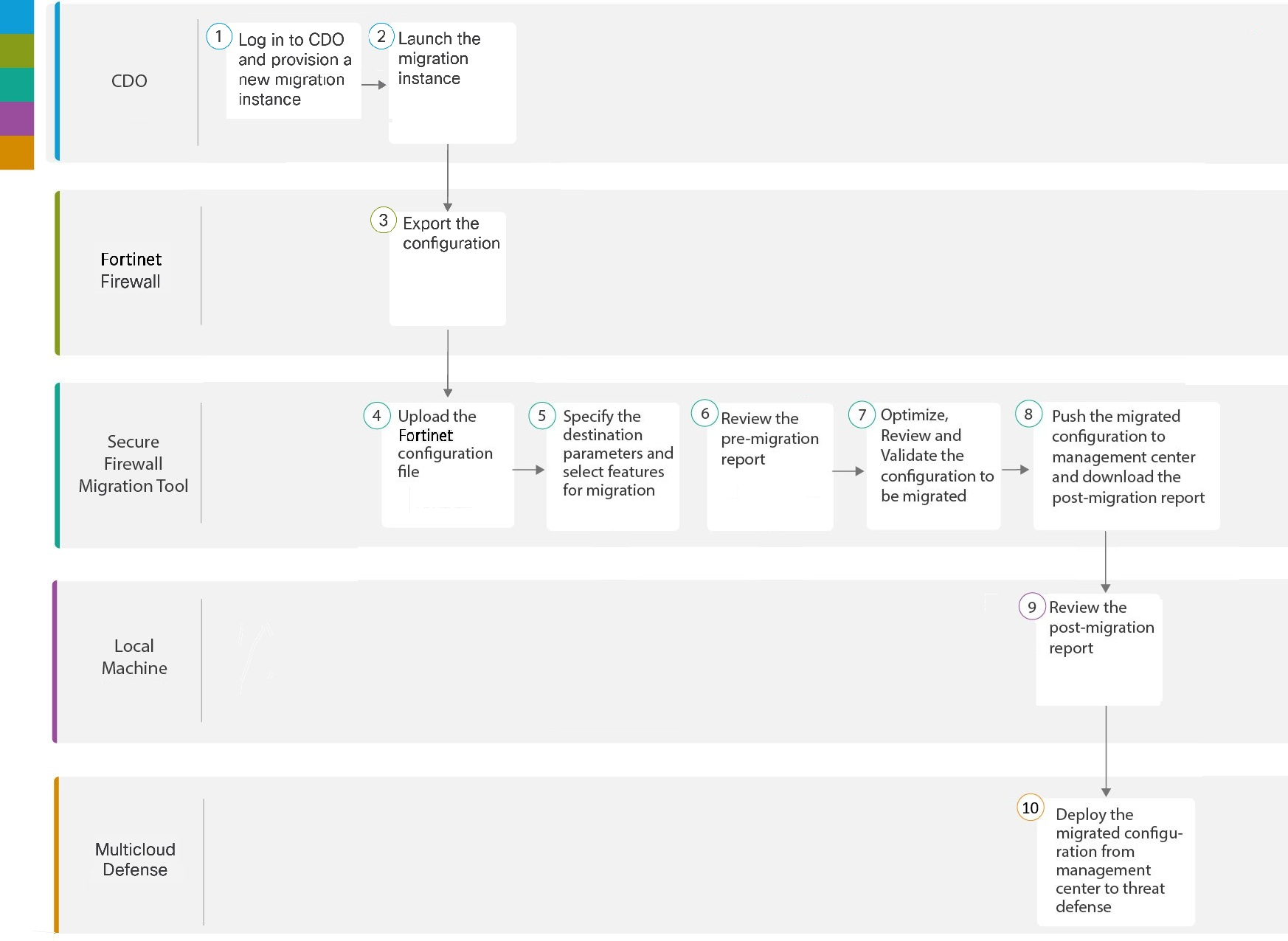
These are the stages of migrating Fortinet firewall configurations to Multicloud Defense:
-
The system administrator logs in to Security Cloud Control and provisions a new migration instance.
- Log in to your Security Cloud Control tenant
- In the left pane, click
-
Click the blue plus
 button to start provisioning a new migration instance
-
The administrator selects the source firewall configuration type and exports the configuration from Fortinet firewall.
- After the migration instance is ready, click Launch and choose Fortinet (5.0+)
- Export the configuration file from Fortinet Networks Firewall as described in Export the Configuration from Fortinet Firewall
-
The administrator uploads the configuration to the Firewall Migration tool and selects Multicloud Defense as the target.
- Upload the configuration to Firewall Migration tool as described in Upload the Fortinet Configuration File
- Choose Multicloud Defense as the target
- Specify the destination parameters as described in Specify Destination Parameters for Multicloud Defense
-
The administrator reviews the pre-migration report to understand what will be migrated.
- Navigate to where you downloaded the pre migration report
- Review the report as described in Review the Pre-Migration Report
-
The administrator optimizes, reviews, and validates the configuration to ensure accuracy before migration.
- Optimize and review the configuration carefully
- Validate that the configuration is correct as described in Optimize, Review, and Validate the Configuration to be Migrated
-
The migration tool sends the migrated configuration to Multicloud Defense and generates a post-migration report.
- Push the configuration to Multicloud Defense as described in Push the Configuration to Multicloud Defense
- Download the post-migration report
-
The administrator reviews the post-migration report and verifies the migrated configurations in Multicloud Defense.
- Navigate to where you downloaded the post migration report and review the report as described in Review the Post-Migration Report and Complete the Migration
- Verify the migrated configurations in Multicloud Defense
- Use the configurations as required in configuring gateways
|
Workspace |
Steps |
|
|---|---|---|
|
|
Security Cloud Control |
Log in to your Security Cloud Control tenant, and in the left pane, click and click the blue plus |
 |
Security Cloud Control |
After your migration instance is ready, click Launch and choose Fortinet (5.0+). |
|
|
Fortinet Firewall |
Export the Configuration File: To export the configuration from Fortinet Networks Firewall, see Export the Configuration from Fortinet Firewall. |
|
|
Secure Firewall Migration Tool |
Upload the configuration to Firewall Migration tool. For more information, see Upload the Fortinet Configuration File. |
|
|
Secure Firewall Migration Tool |
Choose Multicloud Defense as the target and specify the destination parameters. For more information, see Specify Destination Parameters for Multicloud Defense. |
|
|
Secure Firewall Migration Tool |
Navigate to where you downloaded the pre migration report and review the report. For more information, see Review the Pre-Migration Report. |
|
|
Secure Firewall Migration Tool |
Optimize and review the configuration carefully and validate that it is correct. For detailed steps, see Optimize, Review, and Validate the Configuration to be Migrated. |
|
|
Secure Firewall Migration Tool |
This step in the migration process sends the migrated configuration to Multicloud Defense and allows you to download the post-migration report. For detailed steps, see Push the Configuration to Multicloud Defense. |
|
|
Local Machine |
Navigate to where you downloaded the post migration report and review the report. For detailed steps, see Review the Post-Migration Report and Complete the Migration. |
|
|
Multicloud Defense |
Verify the migrated configurations and use them as required in configuring gateways. |


