Migrating Check Point Firewall to Multicloud Defense with the Firewall Migration Tool in Security Cloud Control
Migrating Check Point Firewall to Multicloud Defense with the Firewall Migration Tool is a configuration transformation process that
-
converts Check Point firewall configurations to Multicloud Defense format using the Secure Firewall migration tool hosted on Security Cloud Control,
-
supports Check Point r80-r81 configurations with comprehensive validation and optimization steps, and
-
delivers migrated configurations directly to Multicloud Defense for gateway configuration.
Migration workflow overview
The migration process includes selecting source and target configurations, uploading Check Point configuration files, and completing validation steps.
To read more about the supported configurations for this migration, see Check Point Firewall Configuration Support for Multicloud Defense in Migrating Check Point Firewall to Cisco Multicloud Defense with the Migration Tool guide.
The migration includes two main configuration selection steps:
-
Source configuration selection: In the Source Firewall Vendor drop-down, choose Check Point (r80-r81) and start the migration. Upload the configuration extracted from a Check Point (r80) to the Firewall Migration Tool. To extract configuration from a Check Point (r80) using the Secure Firewall migration tool, proceed to Export the Check Point Configuration Files for r80 in Migrating Check Point Firewall to Cisco Multicloud Defense with the Migration Tool guide.
-
Target selection: On the Select Target page, choose Multicloud Defense. To know more about the prerequisites and the steps involved, see Specify Destination Parameters for Multicloud Defense in the Migrating Check Point Firewall to Cisco Multicloud Defense with the Migration Tool guide.
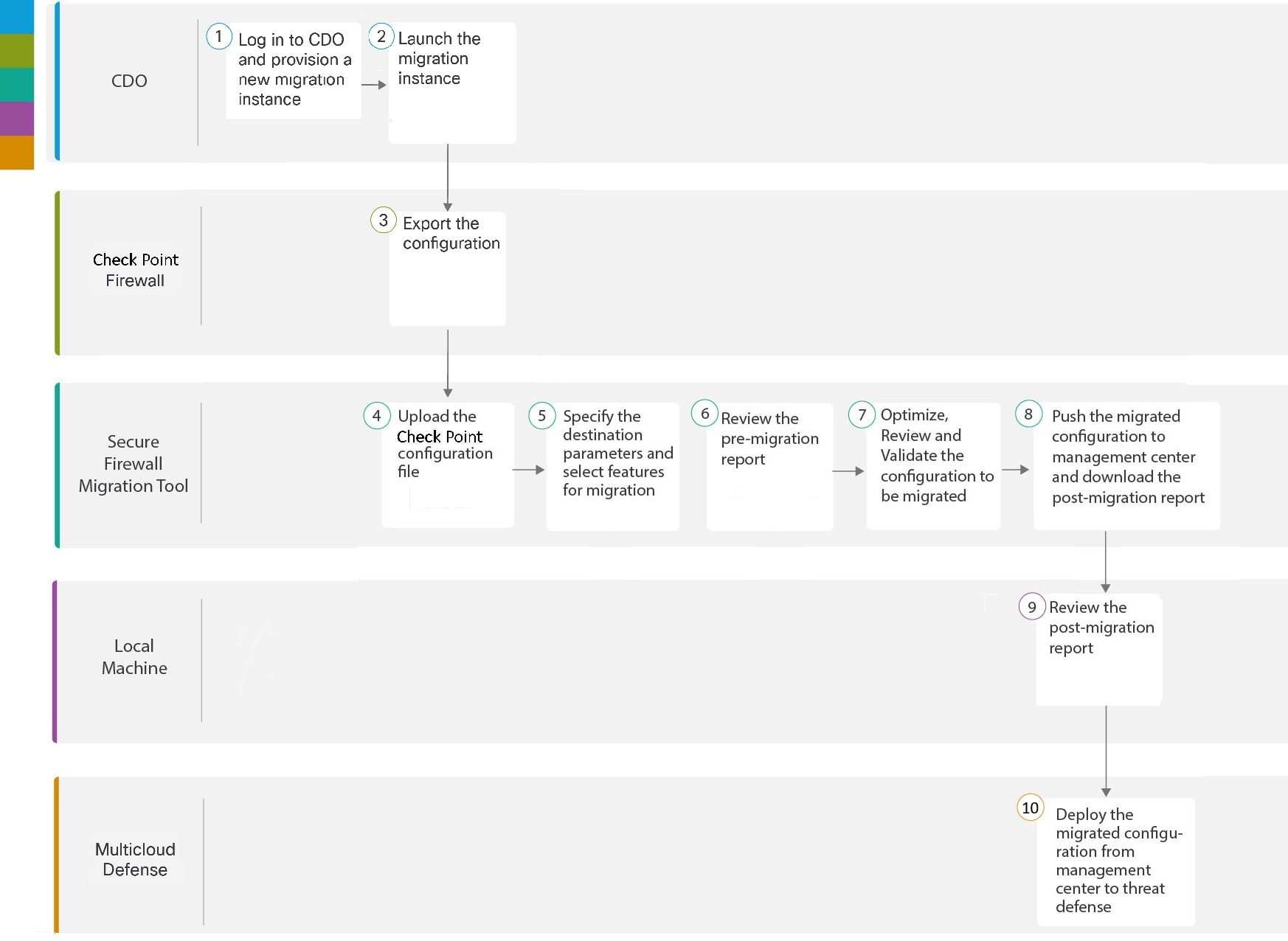
The migration process consists of multiple steps across different workspaces:
|
Workspace |
Steps |
|
|---|---|---|
|
|
Security Cloud Control |
Log in to your Security Cloud Control tenant, and in the left pane, click and click the blue plus |
 |
Security Cloud Control |
After your migration instance is ready, click Launch and choose Check Point (r80-r81). |
|
|
Check Point Firewall |
Export the Configuration File: To export the configuration from Check Point Networks Firewall, see Export the Check Point Configuration Files for r80. |
|
|
Secure Firewall Migration Tool |
Upload the configuration to the Firewall Migration tool. For more information, see Upload the Check Point Configuration File. |
|
|
Secure Firewall Migration Tool |
During this step, you can specify the destination parameters for Multicloud Defense. For detailed steps, see Specify Destination Parameters for Multicloud Defense. |
|
|
Secure Firewall Migration Tool |
Navigate to where you downloaded the pre migration report and review the report. For detailed steps, see Review the Pre-Migration Report. |
|
|
Secure Firewall Migration Tool |
Optimize and review the configuration carefully and validate that it is correct. For detailed steps, see Optimize, Review, and Validate the Configuration to be Migrated. |
|
|
Secure Firewall Migration Tool |
This step in the migration process sends the migrated configuration to Multicloud Defense and allows you to download the post-migration report. For detailed steps, see Push the Configuration to Multicloud Defense. |
|
|
Secure Firewall Migration Tool |
Navigate to where you downloaded the post migration report and review the report. For detailed steps, see Review the Post-Migration Report and Complete the Migration. |
|
|
Multicloud Defense |
Verify the migrated configurations and use them as required in configuring gateways. |

 button to start provisioning a new migration instance.


