Migrate FDM-Managed Device to Secure Firewall Threat Defense with the Firewall Migration Tool in Security Cloud Control
You can migrate FDM-managed device configurations using configuration files or by simply selecting the FDM-managed devices that are onboarded to Security Cloud Control . To read more about the FDM-managed device configurations supported for migration, see FDM-Managed Device Configuration Support in Migrating an FDM-Managed Device to Secure Firewall Threat Defense with the Migration Tool book.
Select Source Configuration
After launching your migration instance from Security Cloud Control , choose Cisco Secure Firewall Device Manager in Select Source Configuration and choose from of the following options:
-
Migrate Firepower Device Manager (Shared Configurations Only)
-
Migrate Firepower Device Manager (Includes Device & Shared Configurations)
-
Migrate Firepower Device Manager (Includes Device & Shared Configurations) to FTD Device (New Hardware)
On clicking Continue , the migration tool enables you to either manually upload an FDM-managed device configuration file or choose any one of the FDM-managed devices onboarded to Security Cloud Control , which are listed on the Connect to FDM pane and click Next .
Select Target
In the Select Target page, the Cloud-Delivered Firewall Management Center provisioned on your Security Cloud Control tenant is selected by default, and the Firewall Threat Defense devices managed by that management center are listed. You can choose the Firewall Threat Defense device you wish to migrate the configuration to, and proceed with the migration.
Note that the threat defense devices listed are displayed either as In Use or Available based on whether the device is being used in another migration instance. However, you can perform an override by clicking Change Device Status , selecting the device from the In Use list, and clicking Continue , which will make the device available for being selected as the target.
Caution | Changing the device status from In Use to Available impacts the ongoing migration instance that is using the device already. We recommend that you exercise caution when doing this. |
The flowchart that follows illustrates the step-by-step procedure for migrating an FDM-managed device using the Firewall migration tool in Security Cloud Control .
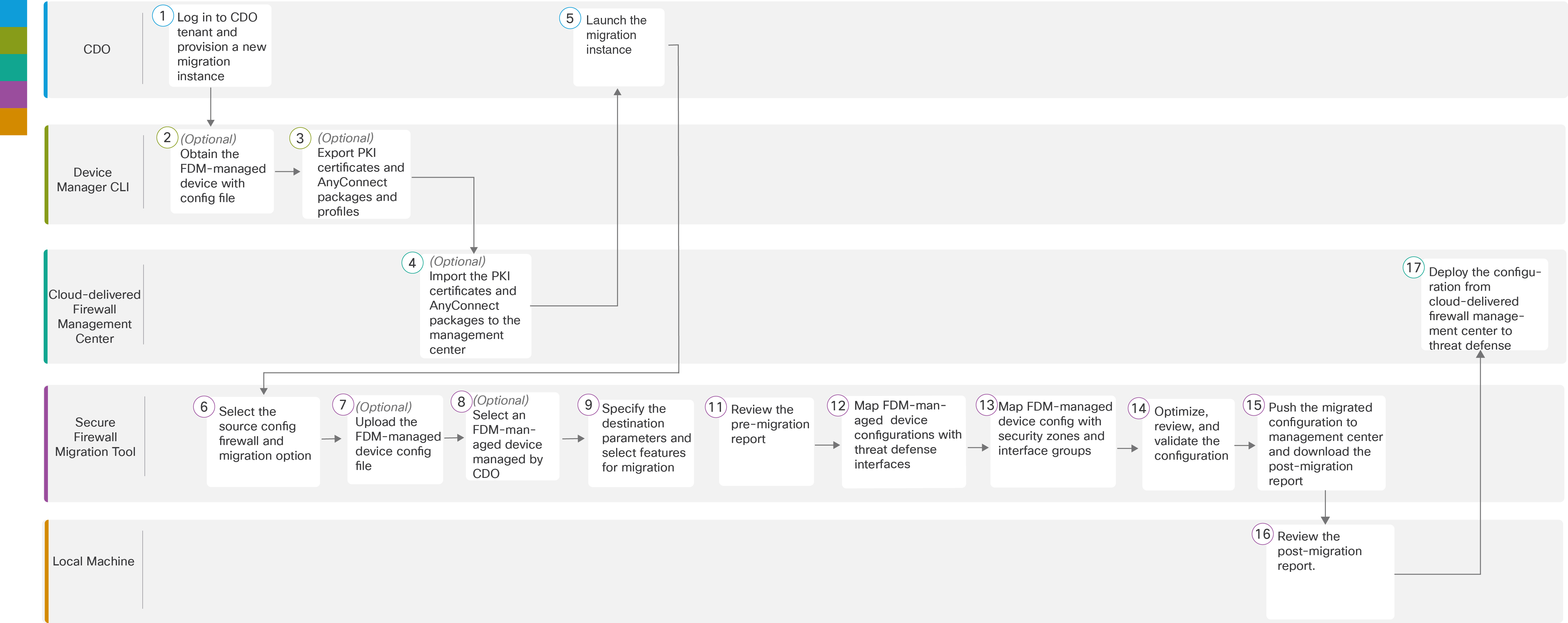
To perform the procedure with more detailed steps, continue to Obtain the FDM-managed Device Configuration File in the Migrating an FDM-managed Device to Secure Firewall Threat Defense with the Migration Tool guide.
|
Workspace |
Steps |
|
|---|---|---|
|
|
Security Cloud Control |
Log in to your Security Cloud Control tenant, and in the left pane, click
, and click the blue plus |
|
|
Device Manager CLI |
(Optional) Obtain the FDM-managed device configuration file: To obtain the FDM-managed device config file from device manager CLI, see Obtain the FDM-Managed Device Configuration File . If you intend to select a Security Cloud Control -managed FDM device in the Select Source Configuration , skip to Step 3. |
|
|
Device Manager CLI |
(Optional) Export PKI certificates and AnyConnect packages and profiles: This step is required only if you are planning to migrate site-to site VPN and remote-access VPN features from an FDM-managed device to threat defense. To export the PKI certificates from device manager CLI, see Step 1 in Export PKI Certificate from and Import into Firewall Management Center . To export AnyConnect packages and profiles from device manager CLI, see Step 1 in Retrieve AnyConnect Packages and Profiles . If you are not planning to migrate site-to-site VPN and remote-access VPN configurations, skip to Step 7. |
|
|
Cloud-Delivered Firewall Management Center |
(Optional) Import the PKI certificates and AnyConnect packages to management center: To import the PKI certificates to management center, see Step 2 in Export PKI Certificate from and Import into Firewall Management Center and Retrieve AnyConnect Packages and Profiles . |
|
|
Security Cloud Control |
Ensure that the status of the migration instance you created is Ready and click Launch ; the Secure Firewall Migration Tool opens in a new browser tab. |
|
|
Secure Firewall Migration Tool |
To select the source configuration firewall and migration option, see Select the Source Configuration Firewall and Migration . |

|
Secure Firewall Migration Tool |
(Optional) Upload the FDM-managed device config file obtained from device manager CLI, see Upload the FDM-Managed Device Configuration File . If you are migrating configuration from an FDM-managed device onboarded to Security Cloud Control , skip to Step 8. |
|
|
Secure Firewall Migration Tool |
From the list of FDM-managed devices shown, that are managed by your Security Cloud Control tenant, select the device whose configuration you want to migrate. |
|
|
Secure Firewall Migration Tool |
On the Select Target page, the Cloud-Delivered Firewall Management Center provisioned on your Security Cloud Control tenant is selected by default. |
|
|
Secure Firewall Migration Tool |
Select a target device from the list of threat defense devices managed by your Cloud-Delivered Firewall Management Center or choose Proceed without FTD and proceed. |
|
|
Secure Firewall Migration Tool |
Download the pre-migration report and review it for a detailed summary of the parsed configuration. For detailed steps, see Review the Pre-Migration Report . |
|
|
Secure Firewall Migration Tool |
Map FTD Interface with the FDM-managed device configuration. Because the names of physical and port channel interfaces on your FDM and threat defense devices are not always the same, you can select to which interface in the target threat defense device you want an FDM-managed device interface to get mapped. For more information, see Map FDM-managed Device Configurations with Secure Firewall Device Manager Threat Defense Interfaces . |
|
|
Secure Firewall Migration Tool |
Map FDM-managed device interfaces to existing threat defense security zones and interface groups. See Map FDM-managed Interfaces to Security Zones and Interface Groups for detailed steps. |
|
|
Secure Firewall Migration Tool |
Optimize, Review and Validate Configuration with caution and ensure ACLs, objects, NAT, interfaces, routes, site-to-site VPN, and remote-access VPN rules are configured as intended for the destination threat defense device. See Optimize, Review and Validate the Configuration . |
|
|
Secure Firewall Migration Tool |
Once your configuration validation is a success, Push Configuration to the Cloud-Delivered Firewall Management Center . For more information, see Push the Migrated Configuration to Management Center . |
|
|
Local Machine |
Download the post-migration report and review it. To know more on what information the post-migration report contains, see Review the Post-Migration Report and Complete the Migration . |
|
|
Cloud-Delivered Firewall Management Center |
Deploy the newly migrated configuration to the threat defense device. |

 button to start provisioning a new migration instance.


Troubleshoot FDM-managed Migration Issues
If you encounter a migration-blocking error when trying to migrate an FDM-managed device, try the following troubleshooting steps:
-
Ensure that your target On-Premises Firewall Management Center 's network connectivity is up.
-
Ensure that the FDM-managed that you are trying to migrate is not manage by the target On-Premises Firewall Management Center already.
Resume Migration
If you have started a migration from Security Cloud Control and wish to continue later, you can simply close the Firewall migration tool tab. When you want to continue with the migration, you can log in to Security Cloud Control and in Firewall Migration Tool click Launch on the migration you want to continue. The migration tool detects that you were migrating and lets you continue from where you left off. However, for the migration tool to detect that you have an ongoing migration, you must at least perform up to parsing of the source configuration. If you leave off a migration before performing this step, you can still launch the same migration from Security Cloud Control but you must start the migration from the first.
A Firewall Migration Tool is a tool that migrates FDM-managed device configurations, supports configuration file uploads, and facilitates source and target device selection.
-
migrates FDM-managed device configurations
-
supports configuration file uploads, and, and
-
facilitates source and target device selection.