Migrate Secure Firewall ASA to Multicloud Defense with the Firewall Migration Tool in Security Cloud Control

The Secure Firewall migration tool in Security Cloud Control lets you to migrate configurations from live ASA devices that are managed by Security Cloud Control or using a configuration file extracted from an ASA device.

To read more about the Secure Firewall ASA configurations supported for migration, see ASA Configuration Support in the Migrating Cisco Secure Firewall ASA to Cisco Secure Firewall Threat Defense with the Migration Tool book.

Before you begin

In the left pane, navigate to Administration > Migration > Firewall Migration Tool and provision a new migration instance.

Follow these steps to migrate Cisco Secure Firewall ASA to Cisco Multicloud Defense with the Firewall Migration Tool:

Procedure


Step 1

Launch your migration instance from Security Cloud Control.

Step 2

Choose Cisco ASA (8.4+) in Select Source Configuration and click Start Migration.

Step 3

Upload an ASA configuration file manually or choose any one of the Security Cloud Control-managed ASA devices listed on the Connect to ASA pane.

Note
If you are trying to select a Security Cloud Control-managed device, note that devices having Configuration Status as Synced are only listed by the migration tool; if you do not see the device you want to migrate in the list, check if the device configuration changes are up-to-date and synced with Security Cloud Control. Note that one ASA device can be selected as the source device by more than one user at the same time and the confuguration extraction takes place seamlessly.

If you have one or more security contexts configured on your ASA device, the migration tool allows you to choose which context you want to migrate; you can also merge all your contexts to a single instance and then migrate them. Refer Select the ASA Primary Security Context for more information.

Step 4

Verify the parsed configuration summary and click Next.

Step 5

On the Select Target page, choose Multicloud Defense.

To know more about the prerequisites and the steps involved, see Specify Destination Parameters for Multicloud Defense in Migrating Cisco Secure Firewall ASA to Cisco Multicloud Defense with the Migration Tool guide.
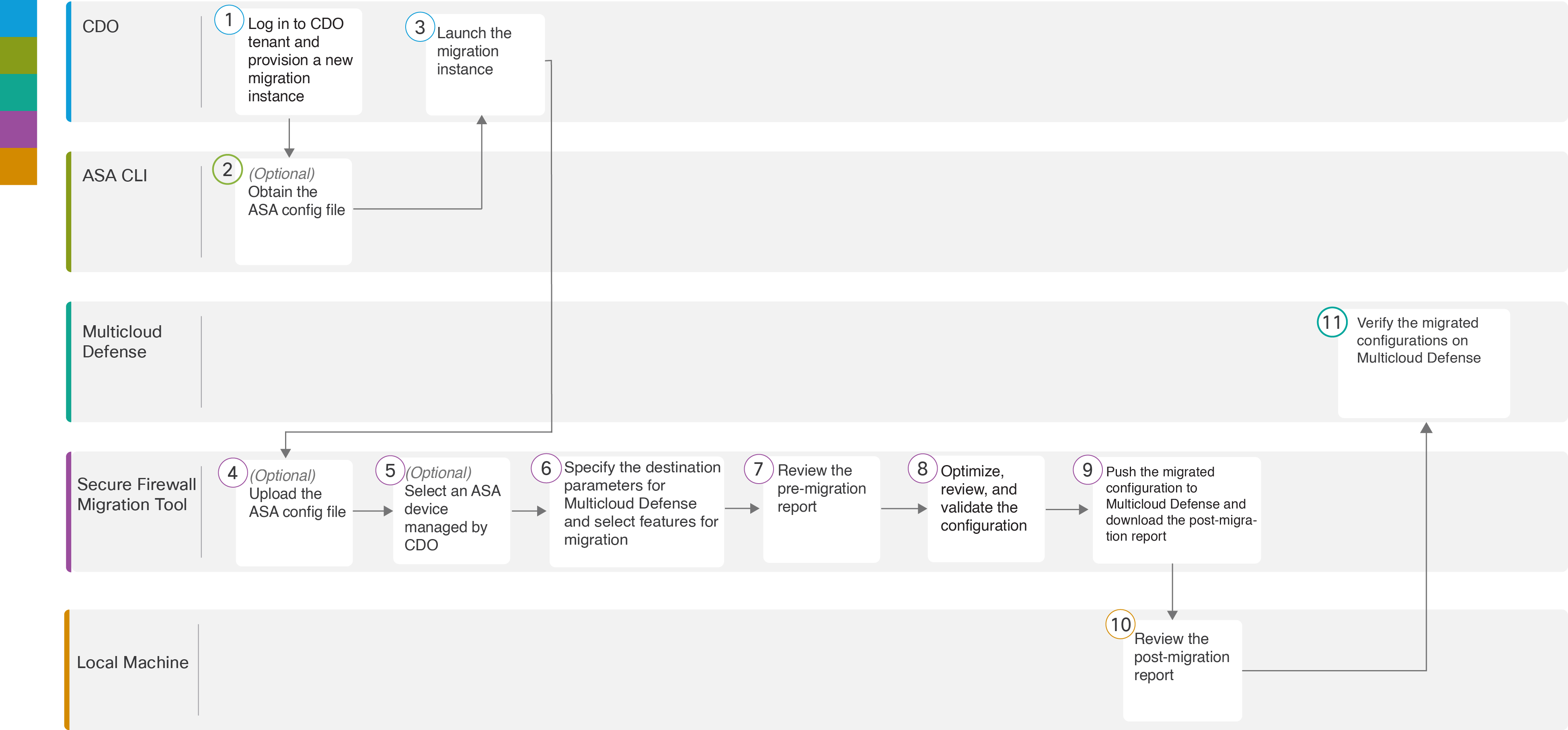
ASA to Multicloud Defense End-to-End Migration ProcedureThe Firewall Migration Tool interface displays the steps for migrating firewall configurations, highlighting key options and settings for a successful migration process.

Workspace

Steps

The Firewall Migration Tool interface allows users to provision a new migration instance in the left pane.

Security Cloud Control

In the left pane, navigate to Administration > Migration > Firewall Migration Tool and provision a new migration instance.

The Firewall Migration Tool interface displays the left pane where users can navigate to provision a new migration instance.

Secure Firewall ASA CLI

Obtain the ASA configuration file: To obtain the ASA config file from ASA CLI, see Obtain the ASA configuration file.

The Firewall Migration Tool interface displays options for migrating firewall configurations, including a Launch button for initiating the process.

Security Cloud Control

Click Launch under Actions to open the migration tool in a different browser tab.

The Secure Firewall migration tool interface allows users to initiate the migration process by clicking the Launch button under Actions.

Secure Firewall migration tool

Upload the ASA config file obtained from ASA CLI, see Upload the ASA Configuration File. If you are planning to connect to live ASA, skip to step 6.

The Secure Firewall Migration Tool facilitates the transition of firewall configurations to a new environment, ensuring a smooth and efficient migration process.

Secure Firewall migration tool

If you want to connect in real time to an ASA already managed by Security Cloud Control, choose from the list of ASA devices.

The Secure Firewall migration tool allows users to specify destination parameters for the migration process.

Secure Firewall migration tool

Specify the destination parameters for Multicloud Defense.

See Specify Destination Parameters for more information.

The Secure Firewall migration tool interface displays options for specifying destination parameters during the migration process.

Secure Firewall migration tool

Navigate to where you downloaded the pre migration report and review it.

See Review the Premigration Report for more information.

The Secure Firewall migration tool interface displays the pre-migration report, highlighting key configuration details and optimization suggestions for a successful migration.

Secure Firewall migration tool

Optimize and review the configuration carefully and validate that it is correct.

See Optimize, Review, and Validate for more information.

The Secure Firewall migration tool facilitates the migration process by allowing users to optimize, review, and validate configurations before pushing them to the target environment.

Secure Firewall migration tool

Push the configuration to Multicloud Defense.

See Push the Configuration to Multicloud Defense for more information.

The Firewall Migration Tool interface displays options for migrating configurations, including buttons for pushing the configuration and downloading the post-migration report.

Local machine

Download the postmigration report for verifying how the migration went.

See Review the Postmigration Report for more information.

The postmigration report provides details on the migration process and highlights any issues encountered during the migration of configurations.

Multicloud Defense

Verify the migrated configurations on Multicloud Defense and use them as required in configuring your gateways.


The ASA configuration is successfully migrated to Cisco Multicloud Defense, and you can verify the migrated configurations on the Multicloud Defense platform.