Migrate Fortinet Firewall with the Firewall Migration Tool in Security Cloud Control

The Firewall migration tool allows migrating configurations from Fortinet firewall to threat defense devices managed by your Cloud-Delivered Firewall Management Center.

You can manually derive the configuration file from your Fortinet firewall and upload it to the migration tool to begin with your migration. To learn about supported Fortinet firewall configurations, see Fortinet Configuration Support.

Procedure


Step 1

On the Select Source Configuration page, choose Fortinet (5.0+) and click Start Migration.

Step 2

Click Upload to choose the Fortinet configuration file and click Next.

Step 3

In the Select Target page, choose the threat defense device you wish to migrate the configuration to.

The Cloud-Delivered Firewall Management Center provisioned on your Security Cloud Control tenant is selected by default, and the Firewall Threat Defense devices managed by that management center are listed.

The threat defense devices listed are displayed either as In Use or Available based on whether the device is being used in another migration instance. However, you can perform an override by clicking Change Device Status, selecting the device from the In Use list, and clicking Continue, which will make the device available for being selected as the target.

Choosing Proceed without FTD pushes only NAT objects, ACLs, and port objects to the Cloud-Delivered Firewall Management Center. For more information about the commonly used ASA features and their equivalent threat defense features, see Cisco Secure Firewall ASA to Threat Defense Feature Mapping guide.

Caution

Changing the device status from In Use to Available impacts the ongoing migration instance that is using the device already. We recommend that you exercise caution when doing this.

Step 4

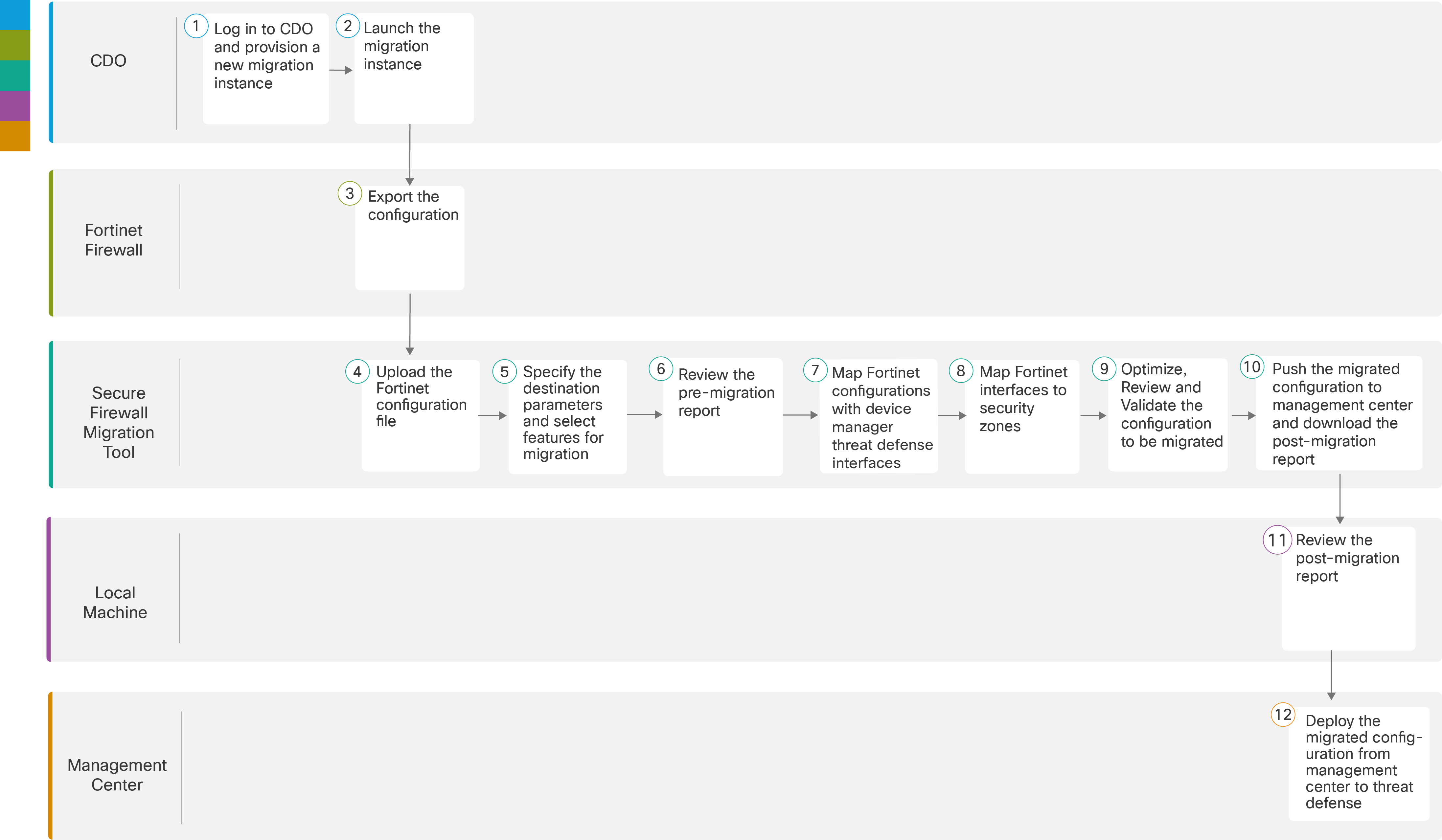
Follow the migration workflow using the table and flowchart provided.

The flowchart that follows illustrates the step-by-step procedure for migration Fortinet firewall configurations to threat defense devices:

To perform the procedure with more detailed steps, continue to Export Fortinet Firewall Configuration from Fortinet Firewall GUI in Migrating Fortinet Firewall to Secure Firewall Threat Defense with the Migration Tool guide.
The image illustrates the Firewall Migration Tool interface, highlighting key features and options for exporting the Fortinet firewall configuration.

Workspace

Steps

The Firewall Migration Tool interface displays the steps required to migrate a Fortinet firewall configuration, including options for importing existing settings and validating the migration process. Security Cloud Control

Log in to your Security Cloud Control tenant, and in the left pane, click Administration > Migration > Firewall Migration Tool, and click the blue plus The Firewall Migration Tool interface displays options for provisioning a new migration instance, including a blue plus button for initiating the process. button to start provisioning a new migration instance.

The Firewall Migration Tool interface displays options for launching the migration process for Fortinet firewalls, including a selection for Fortinet versions 5.0 and above.

Security Cloud Control

After your migration instance is ready, click Launch and choose Fortinet (5.0+).

The Firewall Migration Tool interface displays options for launching a migration instance for Fortinet Firewalls, including the selection of version 5.0 or higher.

Fortinet Firewall

Export the Fortinet configuration to the local system. To export the configuration from Fortinet firewall, see Export the Configuration from Fortinet Firewall.

The Secure Firewall Migration Tool interface displays options for uploading the exported Fortinet configuration file, facilitating the migration process.

Secure Firewall Migration Tool

Upload the Fortinet config file exported from Fortinet firewall, see Upload the Fortinet Configuration File.

The Secure Firewall Migration Tool interface allows users to upload the exported configuration file from a Fortinet firewall for migration purposes.

Secure Firewall Migration Tool

In this step, you can specify the destination parameters for the migration. For detailed steps, see Specify Destination Parameters for the Secure Firewall Migration Tool.

.

The image illustrates the interface of the Secure Firewall Migration Tool, highlighting the fields for entering destination parameters during the migration process.

Secure Firewall Migration Tool

Navigate to where you downloaded the pre migration report and review the report. For detailed steps, see Review the Pre-Migration Report.

The Secure Firewall Migration Tool interface displays options for reviewing the pre-migration report, including navigation instructions and links to detailed steps.

Secure Firewall Migration Tool

To ensure that the Fortinet configuration is migrated correctly, map the Fortinet interfaces to the appropriate threat defense interface objects, security zones, and interface groups. For detailed steps, see Map Fortinet Firewall Configurations with Secure Firewall Device Manager Threat Defense Interfaces.

The diagram illustrates the mapping process of Fortinet interfaces to threat defense interface objects, security zones, and interface groups during the migration using the Secure Firewall Migration Tool.

Secure Firewall Migration Tool

Map the Fortinet interfaces to the appropriate security zones, see Map Fortinet Interfaces to Security Zones for detailed steps.

The Secure Firewall Migration Tool illustrates the mapping of Fortinet interfaces to their corresponding security zones, providing a visual guide for the migration process.

Secure Firewall Migration Tool

Optimize and review the configuration carefully and validate that it is correct and matches how you want to configure the threat defense device. For detailed steps, see Optimize, Review and Validate the Configuration to be migrated.

The image illustrates the process of optimizing and reviewing the configuration for migrating a Fortinet firewall using the Firewall Migration Tool, emphasizing the importance of validating the configuration before implementation.

Secure Firewall Migration Tool

This step in the migration process sends the migrated configuration to the Cloud-Delivered Firewall Management Center and allows you to download the post-migration report. For detailed steps, see Push the Migrated Configuration to Management Center.

The Firewall Migration Tool interface displays options for migrating configurations from a Fortinet firewall, including source and destination settings.

Local Machine

Navigate to where you downloaded the post migration report and review the report. For detailed steps, see Review the Post-Migration Report and Complete the Migration.

The post-migration report outlines the changes made during the migration of the Fortinet firewall, highlighting key configurations and potential issues to address.

Management Center

Deploy the migrated configuration from the Cloud-Delivered Firewall Management Centerto threat defense.


The Fortinet firewall configuration is successfully migrated to the Secure Firewall Threat Defense device through the management center.