Discover and manage On-Premises Firewall Management Center network objects
Procedure
Step 1 | From the Security Cloud Control Home page, click Firewall. | ||||
Step 2 | Choose to view the Services page. | ||||
Step 3 | If you have already onboarded an on-premises Firewall Management Center to Security Cloud Control, select it. If you want to onboard a new on-premises Firewall Management Center, see Onboard an On-Prem Firewall Management Center. | ||||
Step 4 | Choose Settings from the Actions pane. The Actions pane does not appear when you select more than one on-premises Firewall Management Center.
| ||||
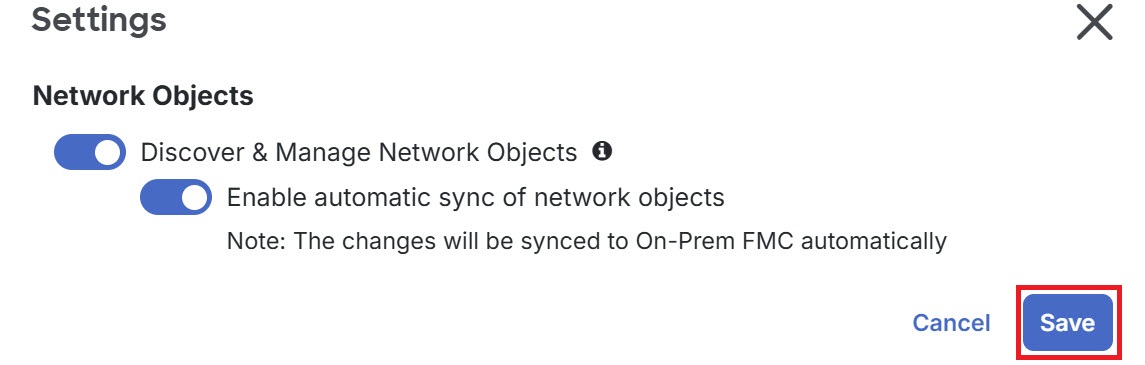
Step 5 | Enable the Discover & Manage Network Objects toggle button. To automatically synchronize your changes with on-premises Firewall Management Center instead of staging them for review, turn on the Enable automatic sync of network objects toggle button. Then, click Save.
For every new on-premises Firewall Management Center onboarded to Security Cloud Control, this toggle button needs to be enabled manually. After you enable this option, Security Cloud Control discovers objects from your on-premises Firewall Management Center. You can then share and manage these objects, and use them to set consistent object definitions across other platforms managed by Security Cloud Control. In Security Cloud Control, when you add overrides to objects that are discovered from an on-premises Firewall Management Center and push the changes back, these objects can now be overridden, even if overrides were not allowed previously. The Allow Overrides check box in the View Network Object window is selected automatically when an override is added from Security Cloud Control.
|