Configure FTDv enforcement point

Cloud Deployment helps you deploy cloud-based enforcement points based on your intended outcomes and use cases. If you select TLS Decrypt, IDS/IPS, Antivirus, Geo IP, or Malicious IP, Cloud Deployment uses the Cisco Secure Firewall Threat Defense Virtual (FTDv) gateway for deployment.

Follow these steps to configure your FTDv enforcement point:

Procedure


Step 1

Choose Security Devices > Cloud Deployment.

Step 2

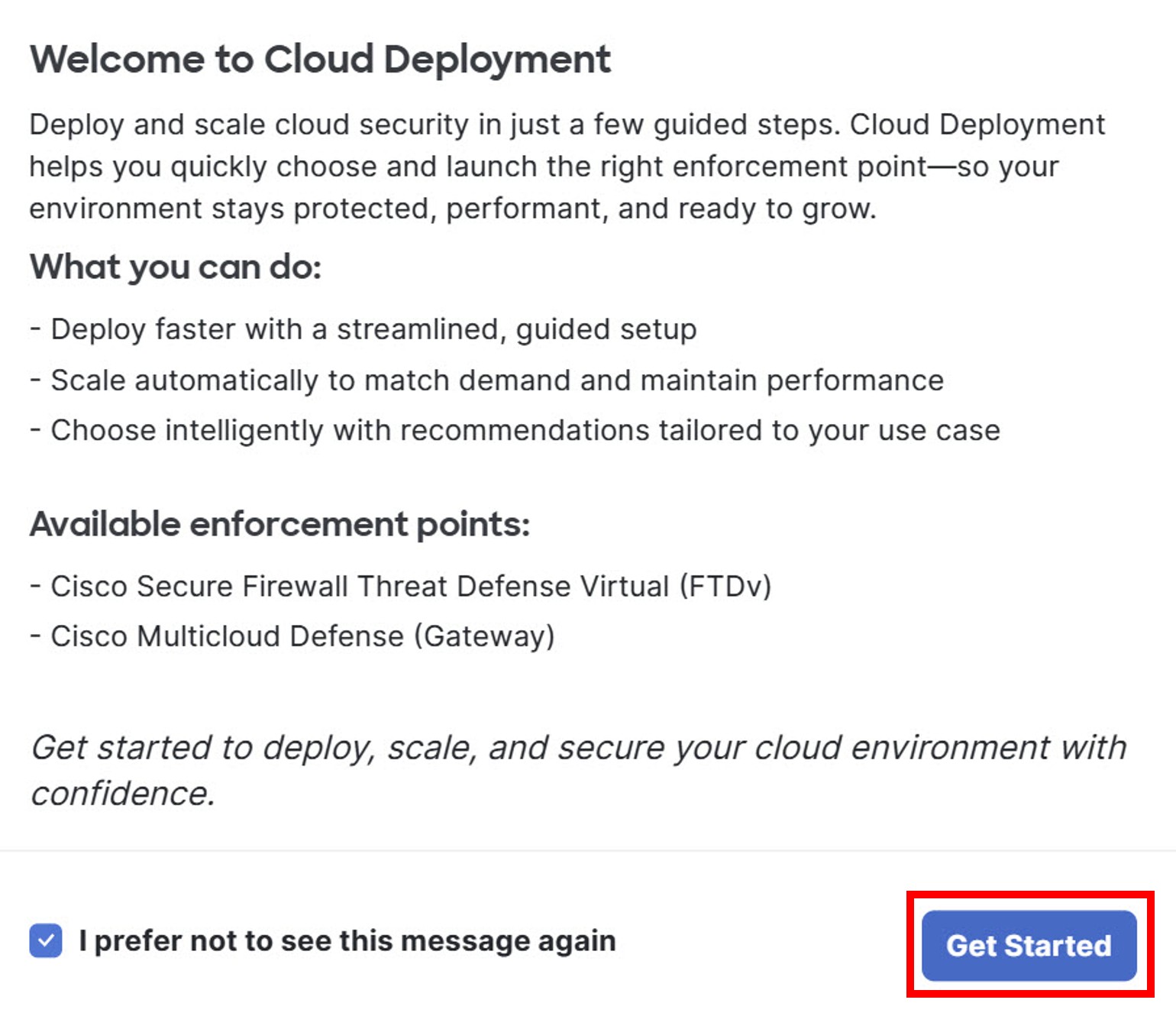
Click Get Started.

Dialog box for the deployment wizard with highlighted get started button.

Step 3

On the Account & Enforcement Type tab, enter these details.

Field Description
Account Select an account from the drop-down list: AWS, Azure, or Google Cloud Platform (GCP).
Region Select the region this gateway will be deployed into.
Select the type of Traffic Flow

Select the type of traffic flow (at least one must be selected):

Ingress: Traffic entering from external destination

Egress: Traffic leaving a network to external destination

East-West: Traffic communicated across workloads with the network

Select your architectural requirements

Select TLS Decrypt, IDS/IPS, Antivirus, Geo IP, or Malicious IP to deploy through the FTDv gateway.

Select Proxy, WAF – L7 DOS, DLP, or Two-Core Enforcement to deploy through Multicloud Defense gateway.

Note that if you select Two-Core Enforcement, Antivirus is unavailable as it is not supported.

Step 4

Click Next.

Step 5

On the Configure Enforcement Point tab, enter these details.

Firepower Threat Defense Virtual Enforcement Information
Name Enter a unique name for this enforcement point; the name can be up to 53 characters long and must be alphanumeric and include an underscore or a hyphen.
Description (Optional) Enter a description for this enforcement point.
If you selected AWS account earlier, enter these details:
VPC/VNet

You can select an existing Service VPC/VNet from the drop-down list or click + Create SVPC to create a new one. After creation and activation, the wizard auto-populates the related network fields. This step can take up to three to four minutes.

Mgmt. Security Group Select the security group to associate with the management interface.
Datapath Security Group 1 Select the security group to associate with datapath 1 interface.
Datapath Security Group 2 Select the security group to associate with datapath 2 interface.
Availability Zone (Optional) Select the specific availability zone within a cloud region where a particular FTDv gateway instance is deployed.

Click + Add Availability Zone to add a new availability zone.

Management Subnet (Optional) Select the subnet for the management interface in the selected availability zone.
Datapath Subnet 1 (Optional) Select the subnet for the primary datapath interface in the selected availability zone.
Datapath Subnet 2 (Optional) Select the subnet for the secondary datapath interface.
Cisco Secure Firewall Threat Defense Virtual
License Model Select the licensing model for the deployment: Smart Licensing, Gateway Hours, or Pay As You Go
Smart Licensing/Gateway Hours/Pay As You Go
Software Version Select the FTDv release to deploy.
Admin Password Enter the Admin password. It must be between 12 and 72 characters in length and include uppercase and lowercase letters, numeric digits, and special characters, excluding the backslash (\) and hyphen (-) characters. The password cannot contain more than two identical or sequential characters in a row (such as 'aaa' or '123').
Policy Ruleset Select the FMC policy to attach to the FTDv deployment.
Performance Tier (Smart Licensing only) Expand the drop-down menu and select the appropriate performance tier for your device. FTDv50 is selected by default.
License Types (Smart Licensing only) Expand the drop-down menu and select the appropriate license type that you have purchased or will purchase in the future. The Base license is auto-selected. For more information about different licensing types, refer to Licensing.

If you want to enable malware defense features, you must also have the THREAT license active. The THREAT license is required to support the MALWARE license functionalities.

Gateway Configuration
Instance Type Select the VM size used for the gateway instances.
Minimum Instances (Optional) Enter the minimum number of instances that you plan to deploy. This must be at least 1.
Maximum Instances (Optional) Enter the maximum number instances that you plan to deploy. This is the maximum number that is used for auto-scaling in each availability zone. This number must be greater than or equal to minimum instances.
Health Check Port (Optional) Enter the port number that the load balancer uses to check instance health. Datapath security groups assigned to the instance(s) must allow traffic on this port. The default port is 65534, and the valid range is from 1 to 65535.
Cloud Configuration
Key Pair Select the key pair that is associated with the cloud account you selected earlier. You must select an existing key pair from the chosen region.
EBS Encryption Select the appropriate EBS encryption for your AWS account.
Advanced Settings
Disable Public IP Check the Disable Public IP check box. Disabling this setting reduces the exposure of your network to external threats. Private IP addresses help protect against unauthorized access, potential attacks, and provide better control over internal traffic. This setting applies only when using NAT-based service and only for data interfaces.
If you selected Azure account earlier, enter these details:
VPC/VNet

You can select an existing Service VPC/VNet from the drop-down list or click + Create SVPC to create a new one. After creation and activation, the wizard auto-populates the related network fields. This step can take up to three to four minutes.

Resource Group Select the resource group that owns the deployment resources.
Mgmt. Security Group Select the security group to associate with the management interface.
Datapath Security Group 1 Select the security group to associate with datapath 1 interface.
Datapath Security Group 2 Select the security group to associate with datapath 2 interface.
Availability Zone (Optional) Select the specific availability zone within a cloud region where a particular FTDv gateway instance is deployed.

Click + Add Availability Zone to add a new availability zone.

Management Subnet (Optional) Select the subnet for the management interface in the selected availability zone.
Datapath Subnet 1 (Optional) Select the subnet for the primary datapath interface in the selected availability zone.
Datapath Subnet 2 (Optional) Select the subnet for the secondary datapath interface.
Cisco Secure Firewall Threat Defense Virtual
License Model Select the licensing model for the deployment: Smart Licensing or Gateway Hours
Smart Licensing/Gateway Hours
Software Version Select the FTDv release to deploy.
Admin Password Enter the Admin password. It must be between 12 and 72 characters in length and include uppercase and lowercase letters, numeric digits, and special characters, excluding the backslash (\) and hyphen (-) characters. The password cannot contain more than two identical or sequential characters in a row (such as 'aaa' or '123').
Policy Ruleset Select the FMC policy to attach to the FTDv deployment.
Performance Tier (Smart Licensing only) Expand the drop-down menu and select the appropriate performance tier for your device. FTDv50 is selected by default.
License Types (Smart Licensing only) Expand the drop-down menu and select the appropriate license type that you have purchased or will purchase in the future. The Base license is auto-selected. For more information about different licensing types, refer to Licensing.

If you want to enable malware defense features, you must also have the THREAT license active. The THREAT license is required to support the MALWARE license functionalities.

Gateway Configuration
Instance Type Select the VM size used for the gateway instances.
Minimum Instances (Optional) Enter the minimum number of instances that you plan to deploy. This must be at least 1.
Maximum Instances (Optional) Enter the maximum number instances that you plan to deploy. This is the maximum number that is used for auto-scaling in each availability zone. This number must be greater than or equal to minimum instances.
Health Check Port (Optional) Enter the port number that the load balancer uses to check instance health. Datapath security groups assigned to the instance(s) must allow traffic on this port. The default port is 65534, and the valid range is from 1 to 65535.
Azure Configuration
Key Selection You can either provide an SSH Public Key directly or select an existing SSH Key Pair from the drop-down list.
Disk Encryption Select either a provider-managed encryption key or a customer-managed key (CMK). If using a CMK, provide the Disk Encryption Set ID.
Advanced Settings
Disable Public IP Check the Disable Public IP check box. Disabling this setting reduces the exposure of your network to external threats. Private IP addresses help protect against unauthorized access, potential attacks, and provide better control over internal traffic. This setting applies only when using NAT-based service and only for data interfaces.
If you selected GCP account earlier, enter these details:
GCP Configuration
Datapath VPC

You can select an existing Service VPC/VNet from the drop-down list or click + Create SVPC to create a new one. After creation and activation, the wizard auto-populates the related network fields. This step can take up to three to four minutes.

Datapath Network Tag 1 Select the network tag used for datapath firewall rules.
Datapath Network Tag 2 This is the second datapath tag used for dual-interface FTDv layouts. This identifies a separate management VPC.
Management VPC Select the management VPC from the drop-down list.
Management Network Tag Select the network tag used for management firewall rules from the drop-down list.
SSH Public Key (Optional) Paste the SSH public key.
Disk Encryption Select either a provider-managed encryption key or a customer-managed key (CMK). If using a CMK, provide the Cloud KMS key resource name.
Availability Zone (Optional) Select the specific availability zone within a cloud region where a particular FTDv gateway instance is deployed.

Click + Add Availability Zone to add a new availability zone.

Management Subnet (Optional) Select the subnet for the management interface in the selected availability zone.
Datapath Subnet 1 (Optional) Select the subnet for the primary datapath interface in the selected availability zone.
Datapath Subnet 2 (Optional) Select the subnet for the secondary datapath interface.
Cisco Secure Firewall Threat Defense Virtual
License Model Select the licensing model for the deployment: Smart Licensing or Gateway Hours
Smart Licensing/Gateway Hours
Software Version Select the FTDv release to deploy.
Admin Password Enter the Admin password. It must be between 12 and 72 characters in length and include uppercase and lowercase letters, numeric digits, and special characters, excluding the backslash (\) and hyphen (-) characters. The password cannot contain more than two identical or sequential characters in a row (such as 'aaa' or '123').
Policy Ruleset Select the FMC policy to attach to the FTDv deployment.
Performance Tier (Smart Licensing only) Expand the drop-down menu and select the appropriate performance tier for your device. FTDv50 is selected by default.
License Types (Smart Licensing only) Expand the drop-down menu and select the appropriate license type that you have purchased or will purchase in the future. The Base license is auto-selected. For more information about different licensing types, refer to Licensing.

If you want to enable malware defense features, you must also have the THREAT license active. The THREAT license is required to support the MALWARE license functionalities.

Gateway Configuration
Instance Type Select the VM size used for the gateway instances.
Minimum Instances (Optional) Enter the minimum number of instances that you plan to deploy. This must be at least 1.
Maximum Instances (Optional) Enter the maximum number instances that you plan to deploy. This is the maximum number that is used for auto-scaling in each availability zone. This number must be greater than or equal to minimum instances.
Health Check Port (Optional) Enter the port number that the load balancer uses to check instance health. Datapath security groups assigned to the instance(s) must allow traffic on this port. The default port is 65534, and the valid range is from 1 to 65535.
Advanced Settings
Disable Public IP Check the Disable Public IP check box. Disabling this setting reduces the exposure of your network to external threats. Private IP addresses help protect against unauthorized access, potential attacks, and provide better control over internal traffic. This setting applies only when using NAT-based service and only for data interfaces.

Step 6

Click Next. If you want to modify the settings, click Back

Step 7

On the Review & Deploy tab, review your configuration and deploy the enforcement point. If you encounter an error, return to the Configure Enforcement Points tab to correct it.

Step 8

Click Deploy.


What to do next

Multicloud Defense deploys the gateway.

You must attach at least one ruleset to the gateway before you secure a spoke VPC/VNet. For more information about rule sets, refer to Rule Sets and Rule Set Groups.