Configure Multicloud Defense enforcement point

Cloud Deployment helps you deploy cloud-based enforcement points based on your intended outcomes and use cases. If you select Proxy, WAF – L7 DOS, DLP, or Two-Core Enforcement, Cloud Deployment uses the Multicloud Defense gateway for deployment.

Follow these steps to configure Multicloud Defense enforcement point:

Procedure


Step 1

Choose Security Devices > Cloud Deployment.

Step 2

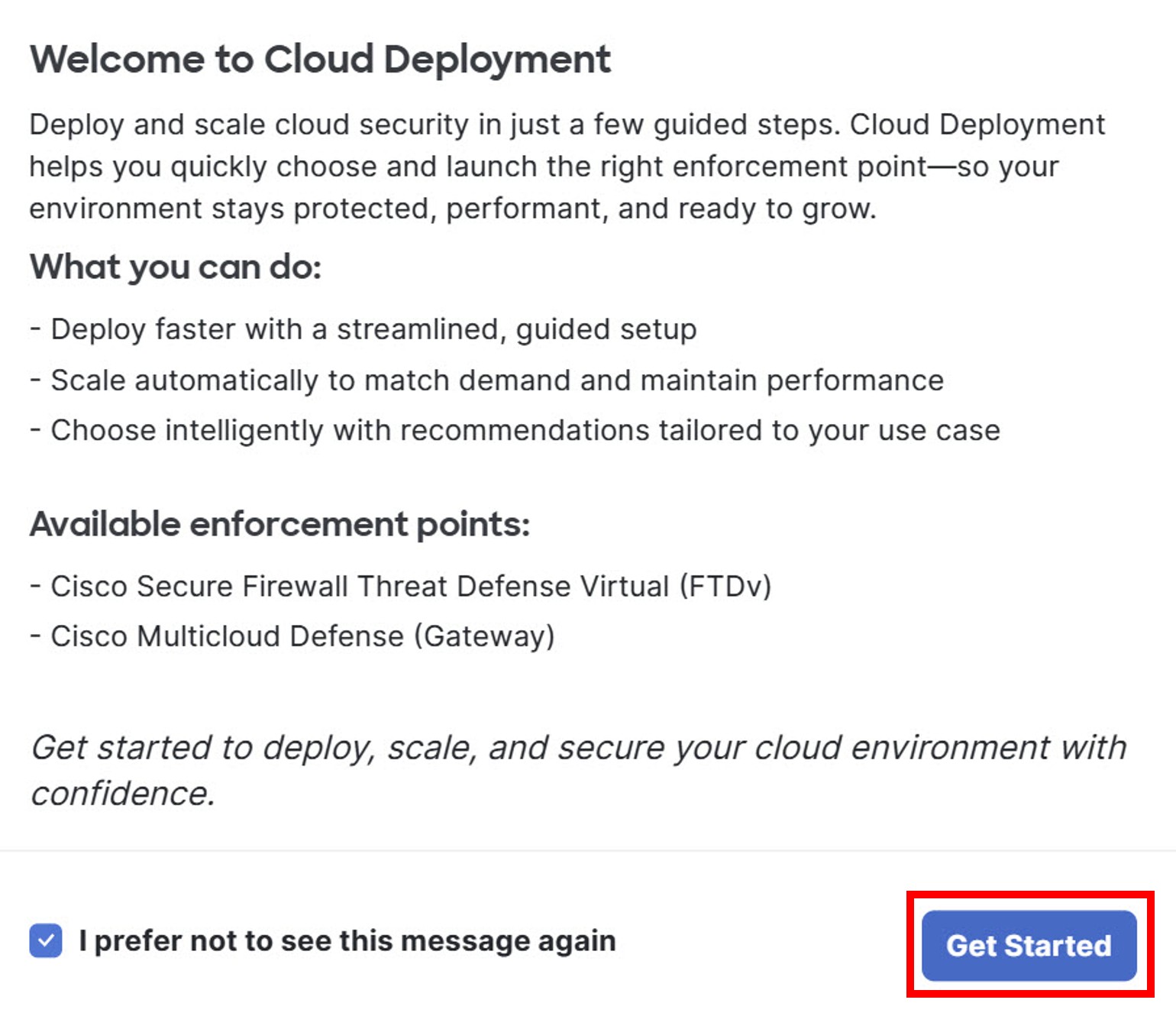
Click Get Started.

Dialog box for the deployment wizard showing the Get Started button.

Step 3

On the Account & Enforcement Type tab, enter these details.

Field Description
Account Select an account from the drop-down list: AWS, Azure, Google Cloud Platform (GCP), or Oracle Cloud Infrastructure (OCI).
Region Select the region this gateway will be deployed into.
Select the type of Traffic Flow

Select the type of traffic flow (at least one must be selected):

Ingress: Traffic entering from an external destination

Egress: Traffic leaving a network to external destination

East-West: Traffic communicated across workloads with the network

Select your architectural requirements

Select TLS Decrypt, IDS/IPS, Antivirus, Geo IP, or Malicious IP if you want to deploy these features through the FTDv gateway.

Select Proxy, WAF – L7 DOS, DLP, or Two-Core Enforcement if you want to deploy through the Multicloud Defense gateway.

Note that if you select Two-Core Enforcement, Antivirus is unavailable as it is not supported.

Step 4

Click Next.

Step 5

On the Configure Enforcement Point tab, enter these details.

Multicloud Defense Gateway Enforcement Information
Name Enter a unique name for this enforcement point; the name can be up to 53 characters long and must be alphanumeric and include an underscore or a hyphen.
Description (Optional) Enter a description for this enforcement point.
If you selected AWS account earlier, enter these details:
Multicloud Defense Gateway Enforcement Information
Deployment Click Centralized or Distributed to select the deployment type.

Centralized allows you to select only a Service VPC.

Distributed allows you to select only a regular VPC/VNet.

If you select a Service VPC, the deployment operates in Hub mode. If you select a regular VPC or VNet, the deployment operates in Edge mode.

VPC/VNet

You can select an existing Service VPC/VNet from the drop-down list or click + Create SVPC to create a new one.

You cannot create a new Service VPC/VNet if you selected Distributed earlier.

After you create and activate the service, the wizard automatically fills in the related network fields. This step can take up to 3 to 4 minutes.

Mgmt. Security Group Select the security group to associate with the management interface.
Datapath Security Group Select the security group to associate with the datapath interface.
Availability Zone (Optional) Select the specific availability zone within a cloud region where a particular Multicloud Defense gateway instance is deployed.

Click + Add Availability Zone to add a new availability zone.

Management Subnet (Optional) Select the subnet for the management interface in the selected availability zone.
Datapath Subnet (Optional) Select the subnet for the primary datapath interface in the selected availability zone.
Gateway Configuration
Instance Type Select the VM size used for the gateway instances from the drop-down list.
Minimum Instances (Optional) Enter the minimum number of instances you plan to deploy. This must be at least one.
Maximum Instances (Optional) Enter the maximum number of instances you plan to deploy. This is the maximum number that is used for autoscaling in each availability zone. This number must be greater than or equal to minimum instances.
Health Check Port Enter the port number used by Multicloud Defense load balancer to check the health of the instances. Datapath security groups assigned to the instance(s) must allow traffic on this port. The default port is 65534, and the valid range is from 1 to 65535.
Gateway Image Group Select the logical grouping of available gateway images from the drop-down list.
Gateway Image Select the exact gateway image/version to deploy from the drop-down list.
Policy Ruleset Select the Multicloud Defense policy ruleset to attach to the gateway.
Cloud Configuration
Key Pair Select the key pair associated with the cloud account you selected in the previous screen.
Gateway IAM Role Select the IAM role that allows the gateway to perform READ and WRITE operations on your AWS account. Multicloud Defense creates this role for you when you save and deploy the gateway.
EBS Encryption Select the appropriate EBS encryption for your specific AWS account.
Multicloud Defense Profiles
Packet Capture Profile (Optional) Select the packet capture profile for threat and flow PCAPs.
Log Forwarding Profile (Optional) Select the log forwarding profile used to forward Events/Logs to a security information and event management (SIEM) system.
Metrics Profile (Optional) Select the metrics profile.
NTP Profile (Optional) Select the Network Time Protocol (NTP) for time synchronization.
Advanced Settings
Use Global Accelerator (Ingress only) Associate the gateway with an AWS Global Accelerator listener so that traffic uses your accelerator.
Disable Public IP By default, the Multicloud Defense gateway enables the use of the public IP of the router available. If you do not want this enabled, check the Disable Public IP check box. This reduces the exposure of your network to external threats.
Use Internal Load Balancer To reduce the exposure of your network to external threats, you can use an internal load balancer instead of a public one for the gateway front end (Ingress only). While the Multicloud Defense gateway enables a public router IP by default, you can opt for a private configuration by checking the Disable Public IP check box.
If you selected Azure account earlier, enter these details:
Multicloud Defense Gateway Enforcement Information
Deployment Click Centralized or Distributed to select the deployment type.

Centralized allows the selection of only a Service VPC.

Distributed allows the selection of only a regular VPC/VNet.

If you select a Service VPC, the deployment operates in Hub mode. If you select a regular VPC or VNet, the deployment operates in Edge mode.

VPC/VNet

You can select an existing Service VPC/VNet from the drop-down list or click + Create SVPC to create a new one.

You cannot create a new Service VPC/VNet if you selected Distributed earlier.

After you create and activate the service, the wizard automatically fills in the related network fields. This step can take up to 3 to 4 minutes.

Resource Group Select the resource group that owns the deployment resources.
Mgmt. Security Group Select the security group to associate with the management interface.
Datapath Security Group 1 Select the security group to associate with the datapath interface.
Availability Zone (Optional) Select the specific availability zone within a cloud region where a particular Multicloud Defense gateway instance is deployed.

Click + Add Availability Zone to add a new availability zone.

Management Subnet (Optional) Select the subnet for the management interface in the selected availability zone.
Datapath Subnet (Optional) Select the subnet for the primary datapath interface in the selected availability zone.
Gateway Configuration
Instance Type Select the VM size used for the gateway instances.
Minimum Instances (Optional) Enter the minimum number of instances you plan to deploy. This must be at least one.
Maximum Instances (Optional) Enter the maximum number of instances you plan to deploy. This is the maximum number that is used for autoscaling in each availability zone. This number must be greater than or equal to minimum instances.
Health Check Port Enter the port number that the load balancer uses to check instance health. Datapath security groups assigned to the instance(s) must allow traffic on this port. The default port is 65534, and the valid range is from 1 to 65535.
Gateway Image Group Select the logical grouping of available gateway images from the drop-down list.
Gateway Image Select the exact gateway image/version to deploy from the drop-down list.
Policy Ruleset Select the Multicloud Defense policy ruleset to attach to the gateway.
Azure Configuration
Key Selection You can either provide an SSH Public Key directly or select an existing SSH Key Pair from the drop-down list.
Username The default SSH username is centos.
User Assigned Identity ID (Optional) Used for accessing Key Vault or writing PCAP files to Blob Storage.
Disk Encryption (Optional) Select the disk encryption type from the drop-down list
Multicloud Defense Profiles
Packet Capture Profile (Optional) Select the packet capture profile for threat and flow PCAPs.
Log Forwarding Profile (Optional) Select the log forwarding profile used to forward Events/Logs to a security information and event management (SIEM) system.
Metrics Profile (Optional) Select the metrics profile.
NTP Profile (Optional) Select the Network Time Protocol (NTP) for time synchronization.
Advanced Settings
Management DNS Server (Optional) Enter the IP address of a DNS server reachable by the gateway for management traffic.
Attach Additional Load Balancer (Optional) Click + Add to associate Azure Load Balancers with this gateway for advanced traffic distribution. Select the Azure LB Name from the drop-down list and enter the Backend Pool Name and Resource Group.
Disable Public IP By default, the Multicloud Defense gateway enables the use of the public IP of the router available. If you do not want this enabled, check the Disable Public IP check box. This reduces the exposure of your network to external threats.
Use Internal Load Balancer To reduce the exposure of your network to external threats, you can use an internal load balancer instead of a public one for the gateway front end (Ingress only). While the Multicloud Defense gateway enables a public router IP by default, you can opt for a private configuration by checking the Disable Public IP check box.
If you selected GCP account earlier, enter these details:
Deployment Click Centralized or Distributed to select the deployment type.

Centralized allows the selection of only a Service VPC.

Distributed allows the selection of only a regular VPC/VNet.

If you select a Service VPC, the deployment operates in Hub mode. If you select a regular VPC or VNet, the deployment operates in Edge mode.

GCP Configuration
Service Account Email Enter the service account email attached to gateway instances.
Datapath VPC

You can select an existing Service VPC/VNet from the drop-down list or click + Create SVPC to create a new one. After you create and activate the service, the wizard automatically fills in the related network fields. This step can take up to 3 to 4 minutes.

Datapath Network Tag Select the network tag used for datapath firewall rules.
Management VPC Select the management VPC from the drop-down list.
Management Network Tag Select the network tag used for management firewall rules from the drop-down list.
Username The default SSH username is centos.
SSH Public Key (Optional) Paste the SSH public key.
Disk Encryption (Optional) Select the disk encryption type from the drop-down list
Network Details
Availability Zone (Optional) Select the specific availability zone within a cloud region where a particular Multicloud Defense gateway instance is deployed.

Click + Add Availability Zone to add a new availability zone.

Management Subnet (Optional) Select the subnet for the management interface in the selected availability zone.
Datapath Subnet (Optional) Select the subnet for datapath interface in the selected availability zone.
Gateway Configuration
Instance Type Select the VM size used for the gateway instances.
Minimum Instances (Optional) Enter the minimum number of instances you plan to deploy. This must be at least one.
Maximum Instances (Optional) Enter the maximum number of instances you plan to deploy. This is the maximum number that is used for autoscaling in each availability zone. This number must be greater than or equal to minimum instances.
Health Check Port Enter the port number that the load balancer uses to check instance health. Datapath security groups assigned to the instance(s) must allow traffic on this port. The default port is 65534, and the valid range is from 1 to 65535.
Gateway Image Group Select the logical grouping of available gateway images from the drop-down list.
Gateway Image Select the exact gateway image/version to deploy from the drop-down list.
Policy Ruleset Select the Multicloud Defense policy ruleset to attach to the gateway.
Multicloud Defense Profiles
Packet Capture Profile (Optional) Select the packet capture profile for threat and flow PCAPs.
Log Forwarding Profile (Optional) Select the log forwarding profile used to forward Events/Logs to a security information and event management (SIEM) system.
Metrics Profile (Optional) Select the metrics profile.
NTP Profile (Optional) Select the Network Time Protocol (NTP) for time synchronization.
Advanced Settings
Disable Public IP By default, the Multicloud Defense gateway enables the use of the public IP of the router available. If you do not want this enabled, check the Disable Public IP check box. This reduces the exposure of your network to external threats.
GCP LB Protocol UDP Check this check box to enable UDP on the gateway’s GCP load balancer configuration.
If you selected Oracle Cloud Infrastructure (OCI) account earlier, enter these details:
Multicloud Defense Gateway Enforcement Information
Deployment Click Centralized or Distributed to select the deployment type.

Centralized allows the selection of only a Service VPC.

Distributed allows the selection of only a regular VPC/VNet.

If you select a Service VPC, the deployment operates in Hub mode. If you select a regular VPC or VNet, the deployment operates in Edge mode.

VPC/VNet

You can select an existing Service VPC/VNet from the drop-down list or click + Create SVPC to create a new one.

You cannot create a new Service VPC/VNet if you selected Distributed earlier.

After you create and activate the service, the wizard automatically fills in the related network fields. This step can take up to 3 to 4 minutes.

Mgmt. Security Group (Optional) Select the security group to associate with the management interface.
Datapath Security Group (Optional) Select the security group to associate with the datapath interface.
Availability Zone (Optional) Select the specific availability zone within a cloud region where a particular Multicloud Defense gateway instance is deployed.

Click + Add Availability Zone to add a new availability zone.

Management Subnet (Optional) Select the subnet for the management interface in the selected availability zone.
Datapath Subnet (Optional) Select the subnet for the primary datapath interface in the selected availability zone.
Gateway Configuration
Instance Type Select the VM size used for the gateway instances from the drop-down list.
Minimum Instances (Optional) Enter the minimum number of instances you plan to deploy. This must be at least one.
Maximum Instances (Optional) Enter the maximum number of instances you plan to deploy. This is the maximum number that is used for autoscaling in each availability zone. This number must be greater than or equal to minimum instances.
Health Check Port Enter the port number used by Multicloud Defense load balancer to check the health of the instances. Datapath security groups assigned to the instance(s) must allow traffic on this port. The default port is 65534, and the valid range is from 1 to 65535.
Gateway Image Group Select the logical grouping of available gateway images from the drop-down list.
Gateway Image Select the exact gateway image/version to deploy from the drop-down list.
Policy Ruleset Select the Multicloud Defense policy ruleset to attach to the gateway.
OCI Configuration
Compartment OCI Compartment where Multicloud Defense gateway will be deployed.
SSH Public Key Paste the SSH public key.
Multicloud Defense Profiles
Packet Capture Profile Select the packet capture profile for threat and flow PCAPs.
Log Forwarding Profile Select the log forwarding profile used to forward Events/Logs to a security information and event management (SIEM) system.
Metrics Profile Select the metrics profile.
NTP Profile Select the Network Time Protocol (NTP) for time synchronization.
Advanced Settings
Internal Load Balancer To reduce the exposure of your network to external threats, you can use an internal load balancer instead of a public one for the gateway front end (Ingress only). While the Multicloud Defense gateway enables a public router IP by default, you can opt for a private configuration by selecting the Disable Public IP check box.
User ID Enable User ID on the gateway if your account supports it.
Management DNS Server Enter the IP address of a DNS server reachable by the gateway for management traffic.
Public IP By default, the Multicloud Defense gateway enables the use of the public IP of the router available. If you do not want this enabled, check the Disable Public IP check box. This reduces the exposure of your network to external threats.

Step 6

Click Next. If you want to modify the settings, click Back.

Step 7

On the Review & Deploy tab, review your configuration and deploy the enforcement point. If you encounter an error, return to the Configure Enforcement Points tab to correct it.

Step 8

Click Deploy.


What to do next

Multicloud Defense deploys the gateway.

You must attach at least one ruleset to the gateway before you secure a spoke VPC/VNet. For more information about rule sets, refer to Rule Sets and Rule Set Groups.