NAT policy remediation
This task helps you resolve duplicate-rule anomalies in NAT policies by applying targeted remediation actions to affected rules.
Policy Analyzer and Optimizer stages NAT remediation changes before it updates the policy. You can stage remediation for individual rules or for all rules in a duplicate-rule observation.
The available actions depend on the NAT rule type:
-
Manual NAT rules: You can delete or disable selected manual rules
-
Auto NAT rules: You can only delete Auto NAT rules, but you cannot disable them.
Note | Back up your policy before applying any remediation. The changes made modify the NAT policy and cannot be automatically reverted. |
Before you begin
-
Ensure that NAT policy analysis is complete and that duplicate-rule observations are available.
-
Verify the Policy last analyzed and Policy last modified values for the policy that you want to remediate.
Procedure
Step 1 | In Policy Analyzer and Optimizer, select the NAT policy and under Analysis Actions, click View analysis details to open its analysis details. | ||
Step 2 | Click Duplicate rules and expand fully shadowed or redundant rules section that contains anomalies. | ||
Step 3 | Expand the observation that contains the rules that you want to remediate. You can select the rules or select the observation to stage all rules in that observation. 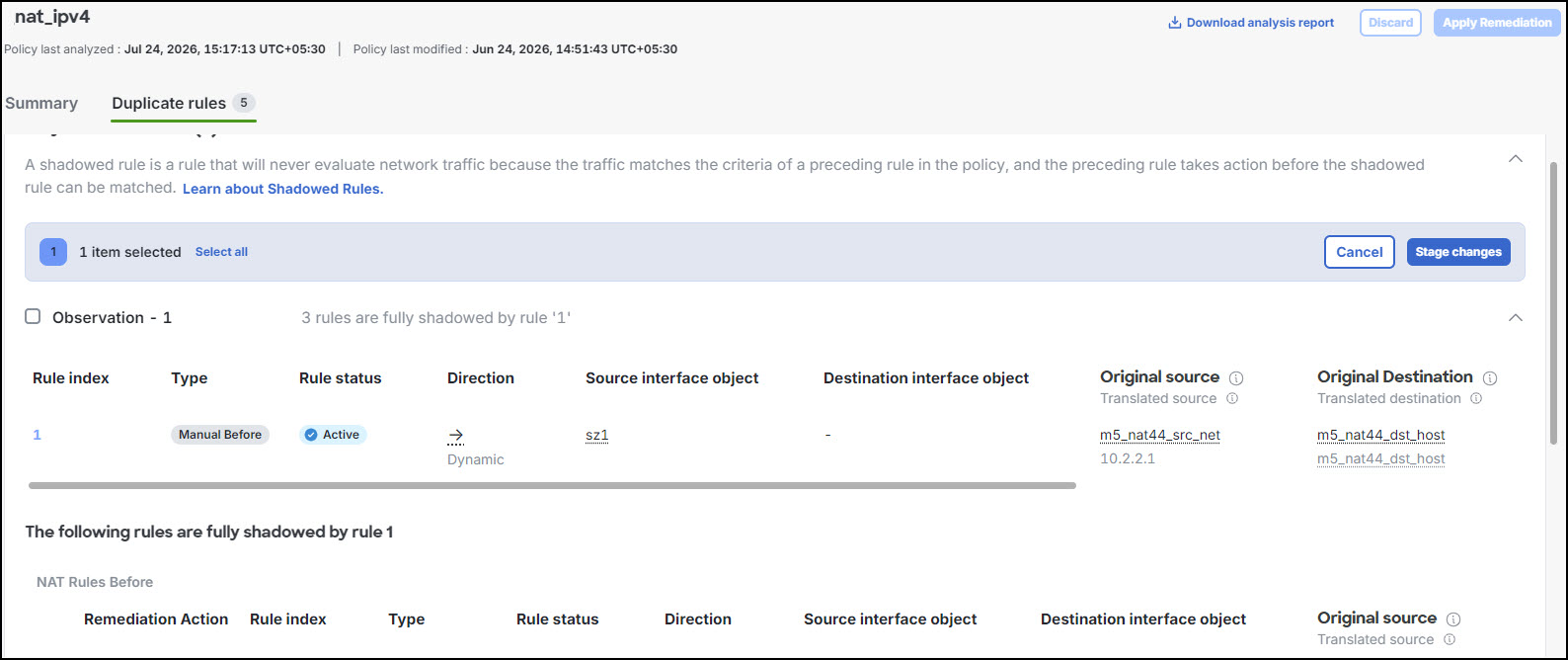
| ||
Step 4 | Click Stage changes. | ||
Step 5 | In Select rules to remediate, select the action for each rule type:
| ||
Step 6 | Select Confirm staging.
Click View details to inspect and review the staged changes. You can click Undo or Discard to revise the staged remediation. | ||
Step 7 | Select Apply Remediation. | ||
Step 8 | On the Apply NAT duplicate-rule remediation page, verify the policy and the number of rules to modify, and then select Apply remediation. |
After you apply the remediation, Policy Analyzer and Optimizer updates the selected NAT rules and automatically starts a new analysis because the previous analysis is stale. While the new analysis runs, the Observations column for the NAT policy shows In progress. After analysis completes, review the refreshed duplicate-rule observations and policy status. If no analyzed anomalies remain, the policy can show a healthy status.