Security Cloud Control Firewall Management Integrations Page
The Integrations page provides a comprehensive view of your managed infrastructure within Security Cloud Control Firewall Management:
-
FMC tab:
-
View the Cloud-Delivered Firewall Management Center that is linked to the Security Cloud Control Firewall Management account. Refer to Request a Cloud-delivered Firewall Management Center for your Security Cloud Control tenant .
-
View which On-Premises Firewall Management Centers are onboarded to Security Cloud Control Firewall Management. Devices managed by these On-Premises Firewall Management Centers appear in Security Devices. Refer to Managing On-Prem Firewall Management Center with Security Cloud Control.
-
Lists the Secure Device Connector and Secure Event Connector available under the Secure Connectors. Refer to Secure Device Connector and Secure Event Connectors.
-
Security Cloud Control. page. The Integrations page also lists tab.
Click the FMC tab, then click Onboard FMC (  ) icon to onboard an On-Premises Firewall Management Center. In the right pane, perform device actions as needed. Refer to Onboard an On-Prem Firewall Management Center.
View device information, including version, device count, device type, and synchronization status. Click the managed devices icon to go to the Security Devices page. Devices managed by the selected On-Premises Firewall Management Center are filtered and displayed. On the Integrations page, select multiple On-Premises Firewall Management Center to perform actions on several management centers at once. Deselect the Cloud-Delivered Firewall Management Center before selecting other On-Premises Firewall Management Center. To add a new secure connector or perform actions on existing secure connectors, choose the Secure Connectors tab and click .
In the left pane, click .
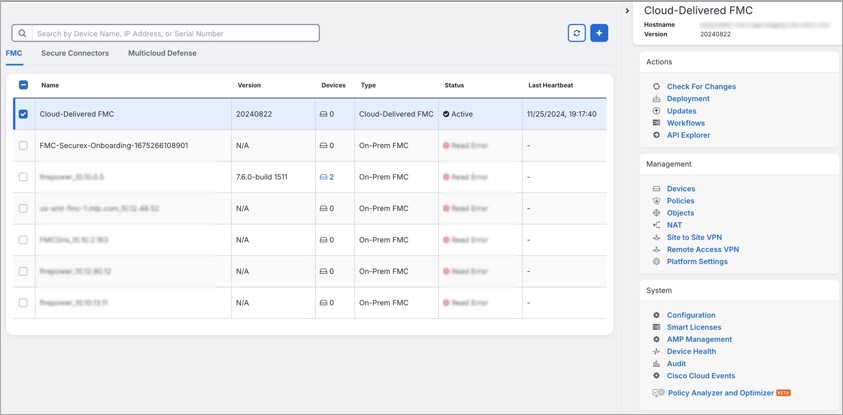
For your Cloud-Delivered Firewall Management Center, the Integrations page displays this information:
-
If you do not have a Cloud-Delivered Firewall Management Center deployed on your tenant, click Enable Cloud-Delivered FMC. Refer to Enable Cloud-Delivered Firewall Management Center on Your Security Cloud Control Tenant for more information.
-
The number of Secure Firewall Threat Defense devices deployed on the Cloud-Delivered Firewall Management Center.
-
Status of the connection between Security Cloud Control and the Cloud-Delivered Firewall Management Center page.
-
The last heartbeat of the Cloud-Delivered Firewall Management Center. This time shows when the Cloud-Delivered Firewall Management Center's status and device count last synchronized with the table on this page..
-
The hostname of the selected Cloud-Delivered Firewall Management Center.
Choose Cloud-Delivered FMC and using the links in the Actions , Management, or Settings pane, you open the Cloud-Delivered Firewall Management Center user interface to perform the configuration tasks that are associated with the link you clicked.
Actions:
-
Check For Changes: The Device Count and Status information in the table is updated with the information available the last time this page and the Cloud-Delivered Firewall Management Center were synchronized. Synchronization happens every 10 minutes.
-
Deployment: Takes you to the device configuration deployment page on Cloud-Delivered Firewall Management Center. Refer to Deploy Configuration Changes.
-
Workflows: Takes you to the Workflows page to monitor every process that Security Cloud Control runs when communicating with devices. Refer to Workflows page.
-
API Explorer: Takes you to the page that lists the Cloud-Delivered Firewall Management Center REST APIs. Refer to Secure Firewall Management Center REST API Guide .
-
Unified Events: Takes you to the Unified Events page on the Cloud-Delivered Firewall Management Center portal, which provides a single-screen view of various firewall events, including connection, intrusion, file, malware, and security-related connection events. For more information, refer to Unified Events .
NoteThe Unified Events feature requires activation. If you have not yet activated this feature, contact your Cisco sales representative to enable it.
Management:
-
Devices: Takes you to the Firewall Threat Defense device listing page on the Cloud-Delivered Firewall Management Center portal. Refer to Configure Devices.
-
Policies: Takes you to the policies page on the Cloud-Delivered Firewall Management Center portal to edit system-provided access control policies and create custom access control policies. Refer to Manage Access Control Policies.
-
Objects: Takes you to the policies page on the Cloud-Delivered Firewall Management Center portal to manage reusable objects. Refer to Object Management.
-
NAT: Takes you to the policies page on the Cloud-Delivered Firewall Management Center portal to configure Network Address Translation policies on the Firewall Threat Defense devices. Refer to Manage NAT policies.
-
Site to Site VPN: Takes you to the site-to-site VPN dashboard page on the Cloud-Delivered Firewall Management Center portal to configure site-to-site VPN policy between two sites. Refer to Site-to-Site VPNs.
-
Remote Access VPN: Takes you to the remote access VPN dashboard page on the Cloud-Delivered Firewall Management Center portal to configure a remote access VPN configuration. Refer to Remote Access VPN.
-
Platform Settings: Takes you to the platform settings page on the Cloud-Delivered Firewall Management Center portal to configure a range of unrelated features whose values you might want to share among several devices. Refer to Platform Settings.
System:
-
Configuration: Takes you to the system configuration settings page on the Cloud-Delivered Firewall Management Center portal to configure system configuration settings. Refer to System Configuration .
-
Smart Licenses: Takes you to the smart licenses page on the Cloud-Delivered Firewall Management Center portal to assign licenses to devices. Refer to Assign Licenses to Devices.
-
AMP Management: Takes you to the AMP management page on the Cloud-Delivered Firewall Management Center portal that supplies data the system uses to detect and block malware on your network. Refer to Cloud Connections for Malware Protection.
-
Device Health: Takes you to the health monitoring page on the Cloud-Delivered Firewall Management Center portal, which tracks various health indicators to ensure the hardware and software in the system are working correctly. Refer to About Health Monitoring.
-
Audit: Takes you to the audit log page on the Cloud-Delivered Firewall Management Center portal to show the generated audit record for each user interaction with the web interface.
-
Cisco Cloud Events: Takes you to the configure Cisco Cloud events page on the Security Cloud Control portal to configure Cloud-Delivered Firewall Management Center to send events directly to SAL (SaaS). Refer to Send Events to SAL (SaaS).
After you open the Cloud-Delivered Firewall Management Center page, click the blue question mark button and select Page-level Help for more information.
Support to open Security Cloud Control and Cloud-Delivered Firewall Management Center applications in separate tabs
As you configure Firewall Threat Defense devices or objects in Cloud-Delivered Firewall Management Center , you can open the appropriate configuration pages in additional browser tabs to work simultaneously in the Security Cloud Control and the Cloud-Delivered Firewall Management Center portals without logging off.
For example, you can create an object on Cloud-Delivered Firewall Management Center and simultaneously monitor event logs on Security Cloud Control that are generated from the security policies.
This feature is available for all Security Cloud Control links that navigate to the Cloud-Delivered Firewall Management Center portal. To open the Cloud-Delivered Firewall Management Center portal in a new tab:
On the Security Cloud Control portal, press and hold the Ctrl (Windows) or Command (Mac) button, then click the corresponding link.
Note | A single click opens the Cloud-Delivered Firewall Management Center page in the same tab. |
Here are some examples of opening the Cloud-Delivered Firewall Management Center portal page in a new tab:
-
Choose and select Cloud-Delivered FMC. In the right pane, press and hold the Ctrl (Windows) or Command (Mac) button, and then click the page that you want to access.
-
Choose .
-
Click the search icon on the Security Cloud Control page and enter your search terms in the search field.
From the search result, press and hold the Ctrl (Windows) or Command (Mac) button, and then click the arrow icon.
-
Choose . Press and hold the Ctrl (Windows) or Command (Mac) button, and then click Manage FTD Policies or Manage FTD Objects.
Note | If you switch to a new Security Cloud Control tenant, the Cloud-Delivered Firewall Management Center portal open in another tab logs out automatically. |